

Databases
Manually recovering the WordPress password via phpMyAdmin
- 425
- por Net Asp Hosting - Support Blog
- Publicado 5/7/2024
n this article, we will show you how to manually recover or reset your WordPress administrator password by accessing the database via phpMyAdmin.
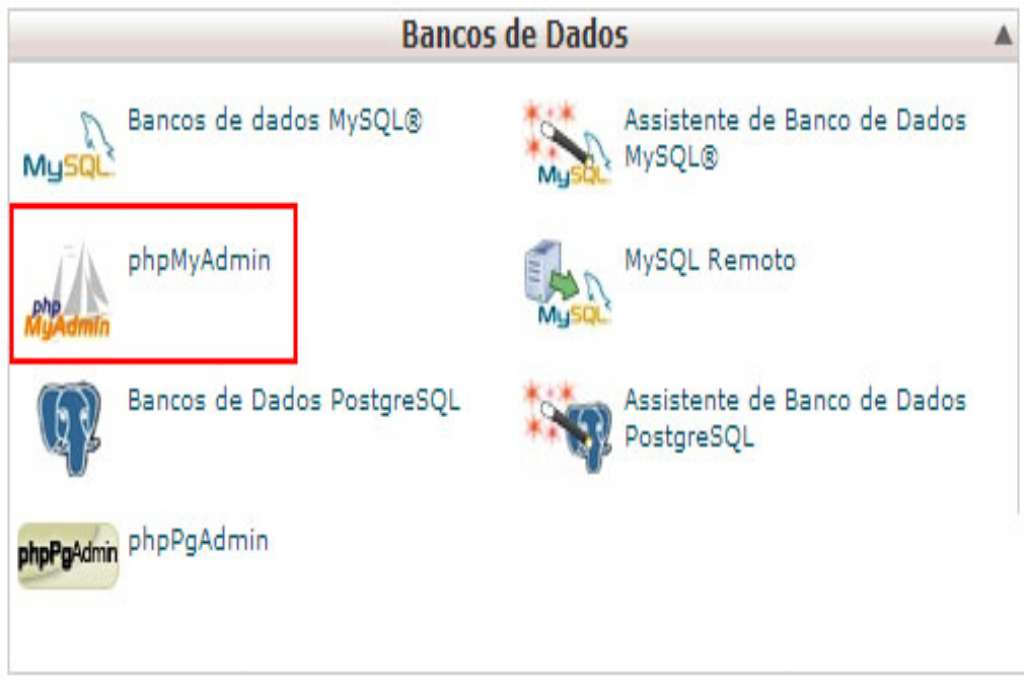
1) The first step is to access your hosting account`s control panel. Then, locate and click the icon for the MySQL database manager. In cPanel, for example, it is located here:
2) Once you have accessed phpMyAdmin, select the database associated with your WordPress site. Click on it once to open it.
3) Now, select the "wp_users" table. In the image below, the table is named "ddr_users" because a different prefix was chosen during installation.
4) After accessing the appropriate table, click the PENCIL icon to edit the user entry for which you want to change the password. This is where you will actually set the new password.
5) Now, delete the current value in the "user_pass" field.
6) After deleting the old value, enter a new password in the same field (in our example, we chose "123456") and then change the function setting to MD5.
7) Once that is done, click the GO button. That’s it—now simply open your WordPress dashboard and log in using the new password you just set.
Enviar feedback